

Sending a big file usually means uploading it to a cloud service, waiting, sending a link and hoping the receiver downloads it before it expires. Peer-to-peer (P2P) transfer skips the middle step. The file travels from your browser straight to the receiver's browser. This guide explains how that works, why it is private by design and when the old upload-and-link method is still the better tool.
Upload-and-link versus direct transfer
| Upload and link (cloud) | Direct P2P transfer | |
|---|---|---|
| Where the file goes | To a company's storage first, then to the receiver | From your browser to the receiver's browser |
| Copies on a server | Yes, until deleted or expired | None |
| Waiting time | Upload, then download | One transfer, starting immediately |
| Receiver must be online | No | Yes, at the same time |
| Size limit | Set by the plan or quota | Set by the devices, not by a server |
| Best for | Sharing with many people, over time | A quick, private handover to one person |
- Where the file goes
- Upload and link (cloud)
- To a company's storage first, then to the receiver
- Direct P2P transfer
- From your browser to the receiver's browser
- Copies on a server
- Upload and link (cloud)
- Yes, until deleted or expired
- Direct P2P transfer
- None
- Waiting time
- Upload and link (cloud)
- Upload, then download
- Direct P2P transfer
- One transfer, starting immediately
- Receiver must be online
- Upload and link (cloud)
- No
- Direct P2P transfer
- Yes, at the same time
- Size limit
- Upload and link (cloud)
- Set by the plan or quota
- Direct P2P transfer
- Set by the devices, not by a server
- Best for
- Upload and link (cloud)
- Sharing with many people, over time
- Direct P2P transfer
- A quick, private handover to one person
How a direct transfer works
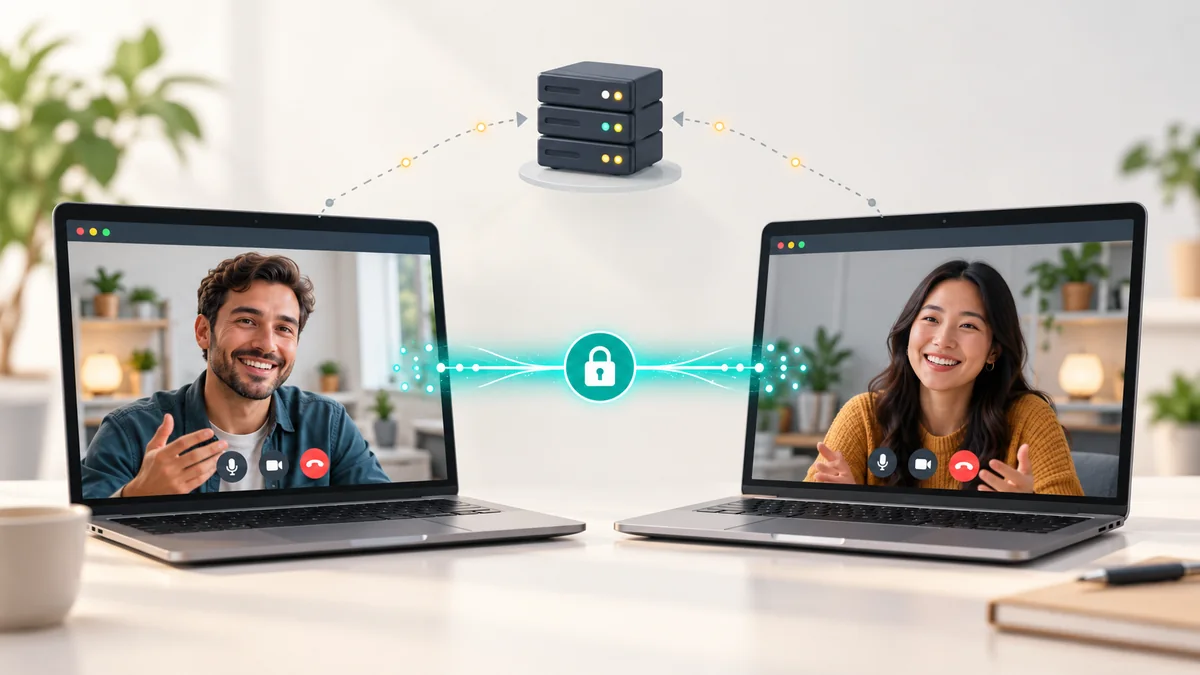
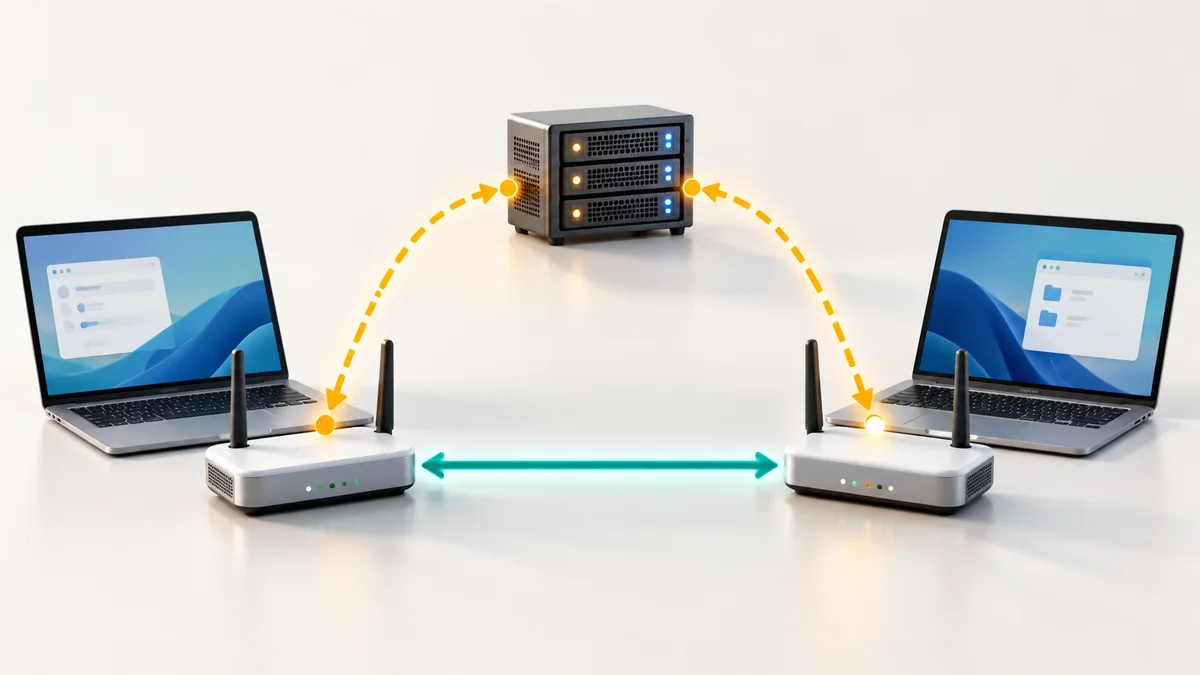
- Introduction. You and the receiver join the same space or room. A small server helps the two browsers find each other by exchanging connection details. This is the same introduction step that video calls use.
- A direct channel. The browsers open an encrypted data channel between them. It is part of WebRTC, the technology built into modern browsers.
- Slicing the file. Your browser reads the file in small pieces and sends them one after another. It slows down automatically when the receiver cannot keep up, which prevents memory from filling.
- Checking and assembling. The receiver's browser puts the pieces back together and the transfer finishes when everything has arrived.
At no point does the file land in a folder on the application's servers. The server only played the matchmaker.
Why that is good for privacy
A file that never reaches a server cannot leak from that server, be indexed by it or be left behind after you forget about a link. The connection is encrypted between the two browsers, so even a relay that forwards packets on a difficult network cannot read the contents. Globfone file sharing works this way: the file is not stored on Globfone servers.
Privacy has one more layer that technology cannot supply: you choose who receives the file. Share the room or space details only with the intended person, and agree on any PIN through a different channel from the link.
How fast is it?
The speed of a direct transfer is set by the slower of two things: your upload speed and the receiver's download speed. Most home connections download much faster than they upload, so your upload is usually the limit. On the same local network a direct transfer can be very fast because the data never leaves the building. Over the internet, a wired connection or a strong Wi-Fi signal on both sides makes the biggest difference.
How large can a file be?
There is no server quota to hit, so the limit comes from the devices. Modern browsers can write large files to disk as they arrive, which lets multi-gigabyte transfers work on a computer. Phones are more constrained by memory and by the way the operating system treats background pages, so keep large transfers on a laptop or desktop when you can.
Tips for a smooth transfer
- Keep both browser tabs open and in front until the transfer finishes. Closing the page ends the transfer.
- Stop your computer from sleeping, and plug in laptops.
- Use a wired or strong Wi-Fi connection on at least the sending side.
- Pause large downloads and video streams on the same network while you send.
- Ask the receiver to open the file and confirm it is complete.
Stay safe when you receive a file
- Accept files only from people you know and expect to hear from.
- Check the file name and size against what the sender told you.
- Be careful with executables, installers and macros in documents. Scan files from sources you cannot verify.
- Share only what you have the right to share.
When a cloud link is the better tool
Direct transfer needs both people online at once. If the receiver is in another time zone, if you want one file to reach many people or if it must stay available for weeks, a cloud link is more practical. Many people use both: P2P for sensitive or urgent files, a cloud link for broad sharing.
Try a direct transfer
Open Globfone File Sharing to create a space for up to four people, with an optional PIN, or use P2P chat for video and files in one room. For more background, see our guide to browser P2P file sharing and the explanation of how browsers find a route to each other.
 How Peer-to-Peer Video Chat Works Without Storing Your Call on a Server
 Peer-to-Peer File Sharing in the Browser: Fast, Private and Legal
 STUN, TURN and ICE in Plain English: Why Some Calls Connect Directly
 Introducing Globfone Video Chat: Private Rooms in Your Browser