

Peer-to-peer (P2P) file sharing sends data directly from one device to another instead of uploading it to a company's storage first. Older P2P networks became known for piracy and malware, and that reputation still colours the term. Modern browser-based P2P is something different: a private, temporary connection between people who know each other, used to hand over a file quickly without leaving a copy on someone else's server. This guide explains how it works, how it compares with cloud upload and how to share files safely and legally.
A short history
File sharing between individual computers took off around 1999 with Napster, which let users search each other's music folders. Later systems such as BitTorrent (2001) split files into pieces and downloaded them from many peers at once, which made large downloads fast and cheap. These networks were powerful but also attracted copyright infringement and malware, and they required special software. Browser-based P2P appeared after WebRTC became a standard: it lets two web pages open a direct, encrypted connection with no installation, and it is meant for private transfers rather than public swarms.
How browser file transfer works
- Both people open the same page and join a space.
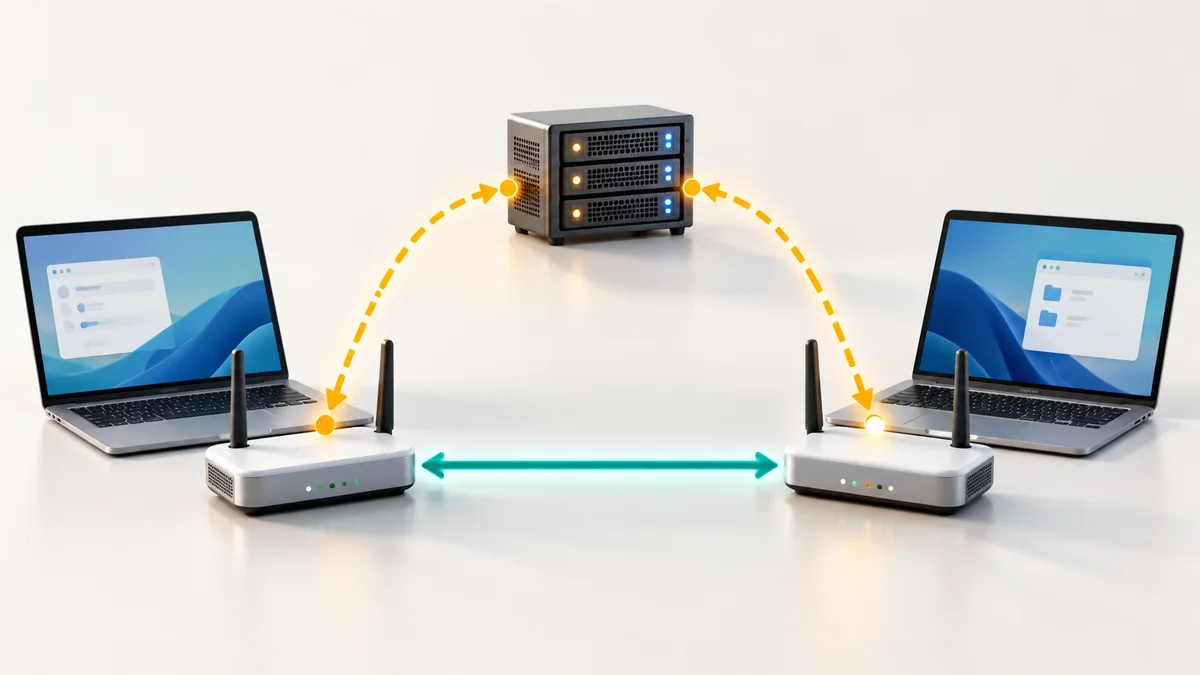
- A small signalling server helps their browsers find each other. See WebRTC explained for the details.
- The browsers test the possible network paths and choose the best one, direct if possible.
- The sender chooses a file. The receiver sees a request and accepts or rejects it.
- The file is split into chunks and sent over an encrypted data channel.
- When all chunks arrive, the browser assembles and saves the file.
Nothing is stored on a server after the transfer. If a direct connection is impossible, for example behind a strict corporate firewall, a relay (TURN) server can carry the encrypted traffic, usually with a lower size limit.
Cloud upload or P2P?
| Cloud upload | Browser P2P | |
|---|---|---|
| Speed | Upload, then download | Direct, one step |
| Storage | Stays on the provider's server | Not stored |
| Both people online at once | No | Yes |
| Sharing with many people over time | Easy | Not suitable |
| Privacy | Depends on the provider | Data goes straight between the two browsers |
| Best for | Archives and shared folders | Quick, private handover |
- Speed
- Cloud upload
- Upload, then download
- Browser P2P
- Direct, one step
- Storage
- Cloud upload
- Stays on the provider's server
- Browser P2P
- Not stored
- Both people online at once
- Cloud upload
- No
- Browser P2P
- Yes
- Sharing with many people over time
- Cloud upload
- Easy
- Browser P2P
- Not suitable
- Privacy
- Cloud upload
- Depends on the provider
- Browser P2P
- Data goes straight between the two browsers
- Best for
- Cloud upload
- Archives and shared folders
- Browser P2P
- Quick, private handover
Globfone File Sharing
Globfone File Sharing creates a share space for up to four people, with an optional PIN. Everyone joins with a username and the space name, and you do not need to log in. Guests accept or reject each transfer, so nobody can push a file onto your device. The screen shows whether the route is direct or relayed, and each completed transfer leaves a record with size, duration and average speed. If you want to talk while you share, open a P2P chat room with the same people.
When P2P is the right tool
- Handing a large video or a folder of photos to a friend sitting at another computer.
- Sending a confidential document that you do not want to leave in a cloud account.
- Moving files between your own devices without cables or accounts.
- Sharing in a classroom or meeting where everyone is online at the same time.
Tips for faster transfers
- Use wired connections or strong Wi-Fi on both sides; the slower side sets the speed.
- Keep both tabs open and active until the transfer finishes. Browsers may slow background tabs.
- Zip a folder with many small files first; one large file transfers more efficiently.
- If the route is relayed and the file is rejected for size, try another network or share the file in parts.
Staying safe and legal
- Only share files you have the right to share. Copyrighted material is not allowed.
- Only accept files from people you know, and scan them if they are executable programs.
- Use a PIN and a hard-to-guess space name for sensitive files.
- Remember both people must stay online until the transfer completes.
- Do not install extra software to use a browser-based service; a trustworthy tool does not need it.
Frequently asked questions
Is browser P2P really private?
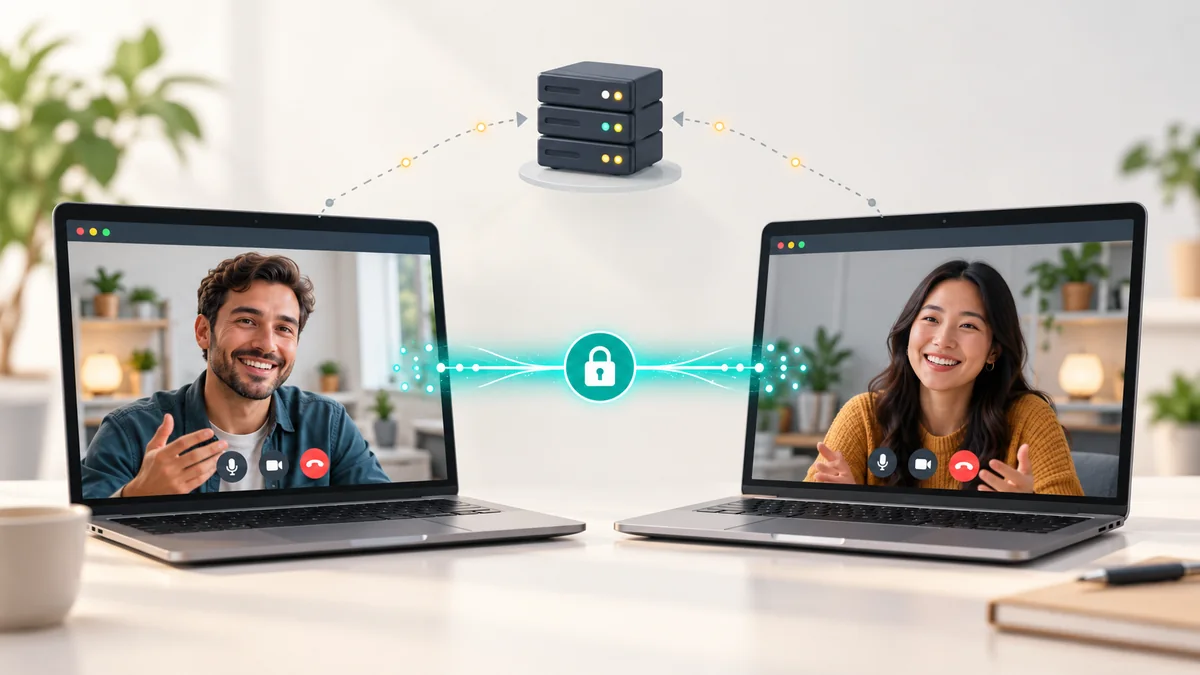
The file travels between the two browsers over an encrypted connection and is not stored on Globfone servers. The signalling server only helps the browsers find each other. A relay, when needed, sees encrypted data only.
How large a file can I send?
Direct transfers are limited mainly by your browsers and connections. Relayed transfers have a lower limit, which the interface shows.
Do I need an account?
No login is needed for file sharing; you join a space with a username.
Under the hood: chunks, buffering and integrity
A browser cannot push a large file through a data channel in one piece. The file is cut into chunks of a few kilobytes, each chunk is sent in order and the receiver puts them back together. The sender watches how full the channel's buffer is (back-pressure) and pauses when the receiver cannot keep up, which keeps memory use low even for multi-gigabyte files. At the end the receiver checks that the number of bytes matches, and well-built tools also compare a checksum to be sure that nothing was damaged on the way.
Why connections sometimes need help
Most home devices sit behind a router that hides them behind one public address (NAT). To connect directly, the two browsers ask a STUN server how they look from the internet and try to meet in the middle. This works on most home and mobile networks. On corporate networks, hotel Wi-Fi or some mobile carriers the router refuses unexpected incoming traffic, and the transfer falls back to a TURN relay. Relayed transfers still work, but they are slower and limited in size because the relay carries all the traffic.
File transfer compared with other methods
| Method | Strength | Weakness |
|---|---|---|
| Email attachment | Everyone has email | Size limit of about 20–25 MB, stored in mailboxes |
| Cloud link | Works even when the receiver is offline | Upload time, copy stays on the server, link can leak |
| USB drive | Fast and offline | You must be in the same place |
| AirDrop or Nearby Share | Very fast and simple | Only nearby devices of the same ecosystem |
| Browser P2P | Any device with a browser, any distance, nothing stored | Both people must be online together |
- Method: Email attachment
- Strength
- Everyone has email
- Weakness
- Size limit of about 20–25 MB, stored in mailboxes
- Method: Cloud link
- Strength
- Works even when the receiver is offline
- Weakness
- Upload time, copy stays on the server, link can leak
- Method: USB drive
- Strength
- Fast and offline
- Weakness
- You must be in the same place
- Method: AirDrop or Nearby Share
- Strength
- Very fast and simple
- Weakness
- Only nearby devices of the same ecosystem
- Method: Browser P2P
- Strength
- Any device with a browser, any distance, nothing stored
- Weakness
- Both people must be online together
Security model
- Encryption: the data channel is encrypted between the two browsers.
- Consent: the receiver explicitly accepts or rejects each file, so nobody can push files onto your device.
- Access control: a space name and an optional PIN decide who can join.
- No storage: there is no copy on the service after the transfer, so there is nothing to leak later.
Troubleshooting
| Problem | What to try |
|---|---|
| Cannot join the space | Check the space name and PIN; make sure the space still has room (up to four people). |
| Transfer is slow | Check the route indicator. A relayed route is slower; try another network. |
| Transfer stops | Keep both tabs open and the screen awake; do not switch to a different network during the transfer. |
| File too large on relay | Use a different connection so that a direct route is possible, or send the file in parts. |
On a phone
File transfer works in the mobile browser as well. Keep the screen on while sending, because many phones pause browser tabs in the background, and prefer Wi-Fi for large files. Saved files usually go to the Downloads folder or the Files app.
Real-life examples
- A photographer sends the original images of a wedding to the client without compressing them.
- A student shares a 1 GB video project with a group member before the deadline.
- A family moves old videos from a parent's computer to a child's laptop during a call.
- A small team exchanges a design file that is too confidential for a public cloud folder.
Checklist before you send
- Agree on the space name and PIN with the receiver using a different channel than the link.
- Check that both of you are on a stable connection and keep the screen awake.
- Confirm the file name and size so that the receiver knows what to accept.
- After the transfer, ask the receiver to open the file and confirm that it is complete.
When not to use browser P2P
If the receiver cannot be online at the same time, or you need to share one file with dozens of people over weeks, a cloud link is a better fit. P2P is for the quick, private handover.
 STUN, TURN and ICE in Plain English: Why Some Calls Connect Directly
 Send Large Files Directly: How Peer-to-Peer Transfer Skips the Cloud
 How Peer-to-Peer Video Chat Works Without Storing Your Call on a Server
 Peer-to-Peer Video Calls Explained: How They Work and When to Use Them