

Globfone P2P chat runs in your browser, so the whole process takes about a minute. This guide covers the steps, a few tips for phones and what to do when something does not work. You can use it for video, audio-only calls, text chat and screen sharing, and combine it with direct file sharing.
Before you begin
- Use an up-to-date Chrome, Edge, Firefox or Safari.
- Make sure your camera and microphone are connected and not used by another app.
- Tell the other person which link to open, or be ready to send yours.
- Use headphones if you can; they prevent echo.
Start a call
- Open Globfone P2P chat. Choose to create a new room or join an existing one.
- Choose a name and, optionally, a PIN. A PIN keeps uninvited people out of the room.
- Grant permission. Your browser asks to use the camera and microphone. Click Allow; you can tick "remember" so you are not asked every time.
- Select devices. Pick the camera and microphone and your preferred mode: video, audio or screen sharing.
- Share the link. Copy the room link and send it. As soon as the other person joins, the browsers connect directly.
During the call
- Mute or switch off your camera whenever you need.
- Switch cameras on a phone with front and rear lenses.
- Share your screen to show a document or a website.
- Use the built-in text chat for links and notes.
- To send a file, create a file-sharing space and invite the same person.
On a phone
- Hold the phone steady or use a stand, and keep the screen on during the call.
- Join over Wi-Fi when you can; video uses a lot of mobile data.
- If the call drops when you switch from Wi-Fi to mobile data, rejoin using the same link.
End the call
Press the hang-up button. If you want to send a file after the call, create a file-sharing space and invite the same person.
Troubleshooting
| Problem | Try this |
|---|---|
| No image | Check browser permissions in the address bar and close other apps that use the camera. |
| No sound | Check the selected microphone and speaker, and unmute in the system volume mixer. |
| Cannot connect | Disable VPNs or strict firewalls briefly; Globfone falls back to relay servers but some networks block them. |
| Choppy video | Close heavy downloads, move closer to the router or switch to audio only. |
| Echo | Use headphones, or ask the other person to mute when not speaking. |
Want to know why a direct connection is faster and more private? Read peer-to-peer video calls explained.
Frequently asked questions
Can I join without an account?
Joining a room with a shared link does not need Premium. Some limits depend on your credibility level; see the credibility guide.
How do I leave the room safely?
Press hang-up, close the tab and make sure the browser's camera indicator is off.
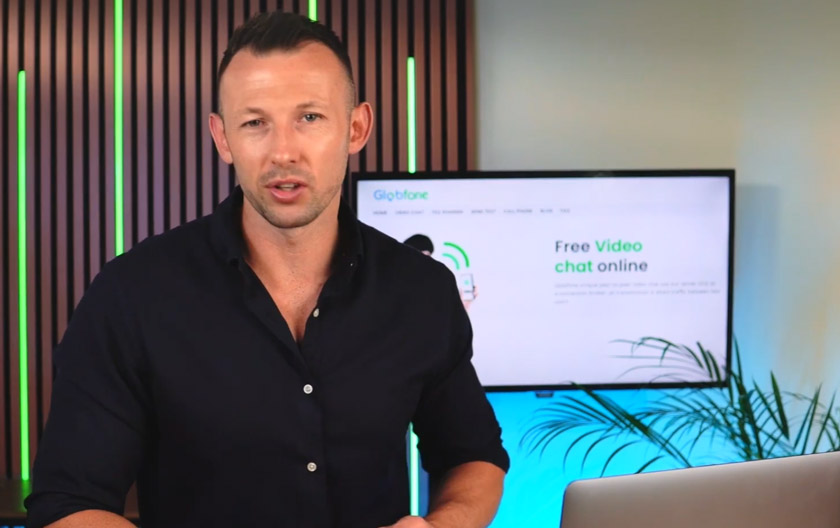 Globfone Video Chat Walkthrough: Watch How a Call Starts
 Peer-to-Peer Video Calls Explained: How They Work and When to Use Them
 Introducing Globfone Video Chat: Private Rooms in Your Browser
 Browser Video Chat Compared: Zoom, Meet, Teams, Whereby, Discord and Globfone